Draft Canvas Desktop
Draft Canvas Desktop is the same editor in a window of its own, made for the moment a meeting needs a
diagram: click Draft Canvas in the menu bar or system tray, start a Quick Draft, and draw. What you draw is
kept on your computer, and when you're done it is a .draftcanvas file wherever you choose to put it.
Nothing about it needs an account, a server or a network connection. It is one of two ways to use Draft Canvas, and both work on the same file: the web app and this. It is for macOS, on Apple Silicon or Intel, and Windows on x64.
Installing#
Download a macOS or Windows installer from the latest stable release. On macOS 12 or later, Apple Silicon and Intel Macs can also use Homebrew:
brew install --cask acltabontabon/tap/draft-canvas
The cask selects your architecture and installs Draft Canvas.app in Applications. Homebrew
preserves macOS Gatekeeper checks: for the current ad-hoc-signed builds, open the app once and then
choose System Settings → Privacy & Security → Open Anyway if prompted. On Windows, use the
installer and choose More info → Run anyway if SmartScreen prompts. See the release notes for platform-specific first-launch details.
The app updates itself with signed updates. brew upgrade --cask --greedy acltabontabon/tap/draft-canvas explicitly includes this self-updating cask. Quit the app before
replacing it. Uninstalling the cask leaves diagrams, Quick Drafts and recovery data alone.
Quick Draft#
New Quick Draft is in the tray menu, the File menu (⌘N / Ctrl+N) and on Home, where it's the big
Quick Draft button. It opens a blank canvas at once: there is no name to pick, no folder to choose, nothing
to set up.
Home arranges Quick Draft, Try an example, Open file…, and Connect an agent… as a small diagram. Your drafts, recent files, and projects sit just below it. Try an example opens a ready-made diagram as a Quick Draft.
Desktop Home
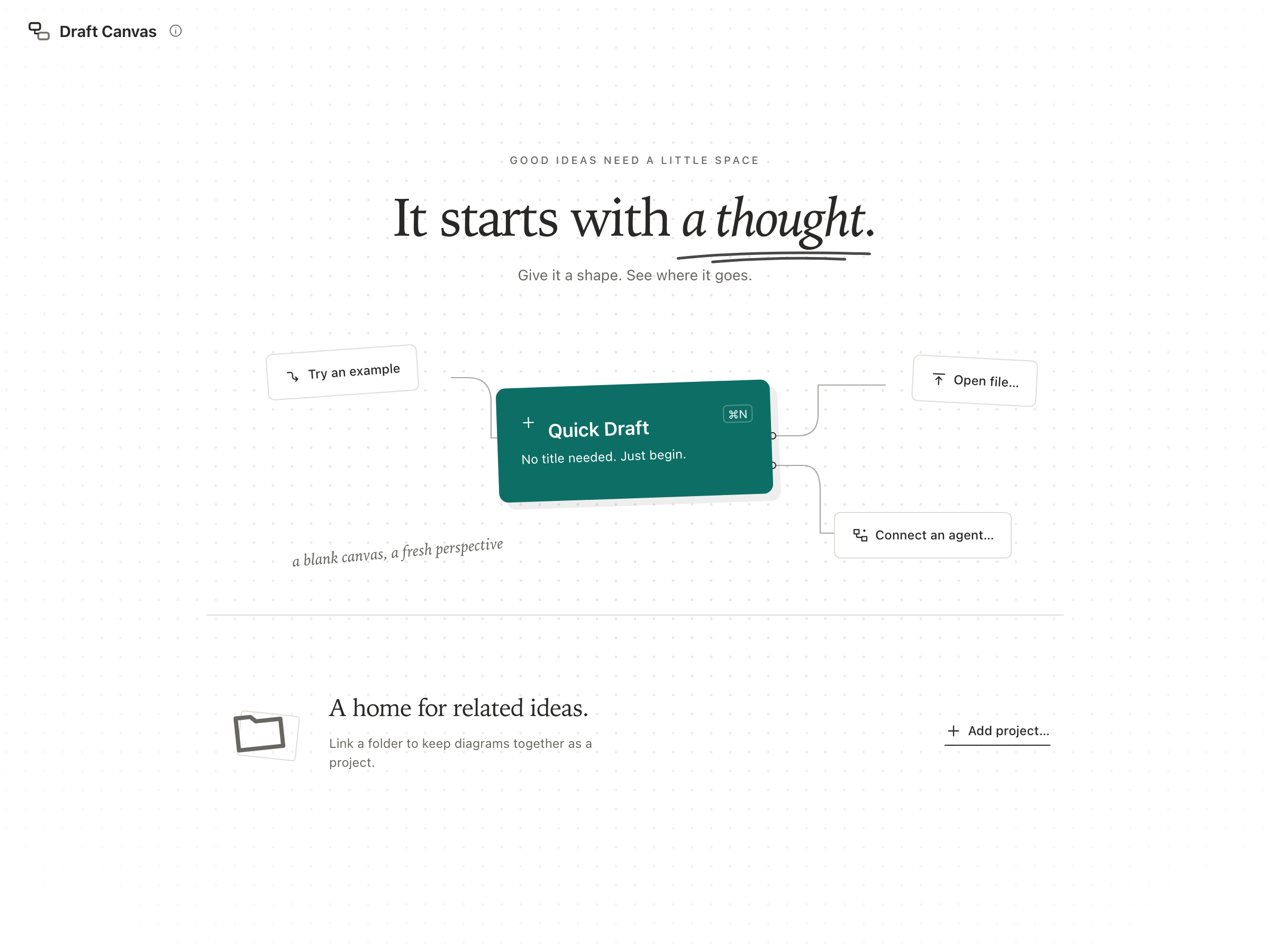
Home keeps a compact shelf of diagram previews. Projects remains available before you add a project. The tab bar appears only when there are multiple views; a single view shows its content directly, keeping the separator above it. Drafts appears when at least one draft exists and disappears when the last draft is saved or discarded. Recent appears only while there is at least one recent file; removing the last file or clearing the list hides the tab. Blank drafts show a quiet paper preview until you draw on them. Choose Projects → Add project… to link a folder.
Choose View all beside the tabs, or the search button at the top right, to open the gallery. Its larger previews show each diagram's structure. Search spans the selected view; Everything includes drafts, recent files, and every registered project.
A Quick Draft has no file yet. Until you save it, Draft Canvas keeps a working copy in its own data folder, so closing the window, quitting, or a crash doesn't lose it. It shows up under Drafts on Home until you:
- Save it (
⌘S), which asks where the file goes, or Move into Project… to put it in your most recent project; - Discard it, from Home; or
- Export it, as an image or any other format, like any diagram.
A Quick Draft you never drew on leaves nothing behind. One you did is never deleted for you.
Files#
A diagram is a .draftcanvas file, like any other file on your computer.
- Open (
⌘O) uses the same in-app explorer as Add project. Browse folders, select a diagram to preview it, then choose Open diagram (or double-click it). You can also drag a file onto the window, pick one from Recent, or double-click it in Finder or Explorer. If Draft Canvas is already running, the file opens in the running app. - Save (
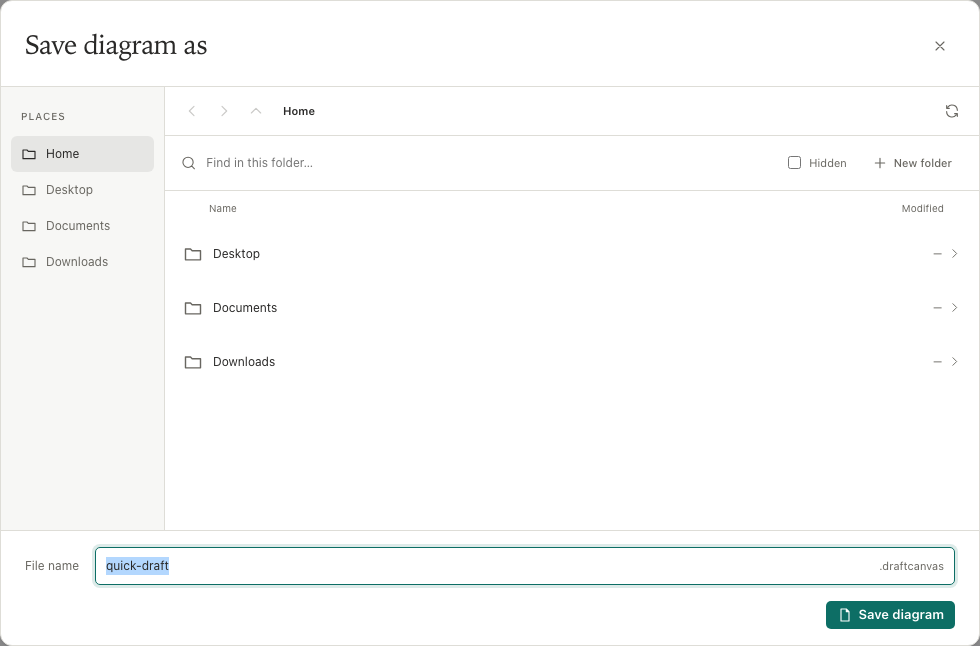
⌘S) writes the file. Draft Canvas never saves a file you chose behind your back: the status bar says Unsaved changes until you do, and asks before closing something unsaved. (The one exception is an AI agent you allowed: its change is saved only when you had no unsaved changes of your own.) Save As… is⌘⇧S. Save As… opens the shared explorer: browse to a folder, edit File name, then choose Save diagram. The.draftcanvasextension is added automatically. An existing file requires Replace diagram confirmation; Change name keeps it untouched. The first Save of a Quick Draft uses the same explorer. Revert to Saved… puts back what is on disk. - New File… (
⌘⇧N) asks where the file goes first, then opens it blank. - The window title is the file's name, and Reveal in Finder / File Explorer shows where it is.
- Rename File…, from the File menu or a file's own action in Find a Diagram, changes its name in place — no need to leave Draft Canvas, and the diagram's own title is untouched.
Saving is careful. The diagram is written to a temporary file next to the original and swapped in only once it is complete, so an interrupted save can't leave a half-written diagram. If something else changed the file since you opened it, Draft Canvas asks before replacing it. If it can't save, it says why in plain words (read-only, disk full, no permission) and your work stays on screen.
When something else changes an open diagram on disk — a git pull, another editor, an agent — Draft Canvas
loads the new version straight away, even while it's in the background. If you have unsaved changes, it keeps
them: the status bar says the file changed, and saving asks before replacing it. Projects on Home pick up
diagrams added or removed in their folders the same way.
Unsaved changes to a file are also copied to the data folder as you work, so if the app closes before you save, Home offers them back the next time. The file itself isn't touched until you save.
Folders as projects#
A project is a folder. On Home, Projects → Add project… opens the in-app folder explorer. Choose a location in Places, then double-click folders (or press Enter) to navigate. Breadcrumbs and Back, Forward and Up let you retrace your steps. Find in this folder filters names; Hidden reveals dotfiles and folders. Selecting a diagram shows its preview without opening it.
To make a folder here, choose New folder, enter its name, and choose Create folder. The explorer opens the new folder, ready to use. It is created on disk immediately; Add project links it to Home.
Select a folder, or navigate into it, then choose Add project. Browsing or cancelling never links a project.
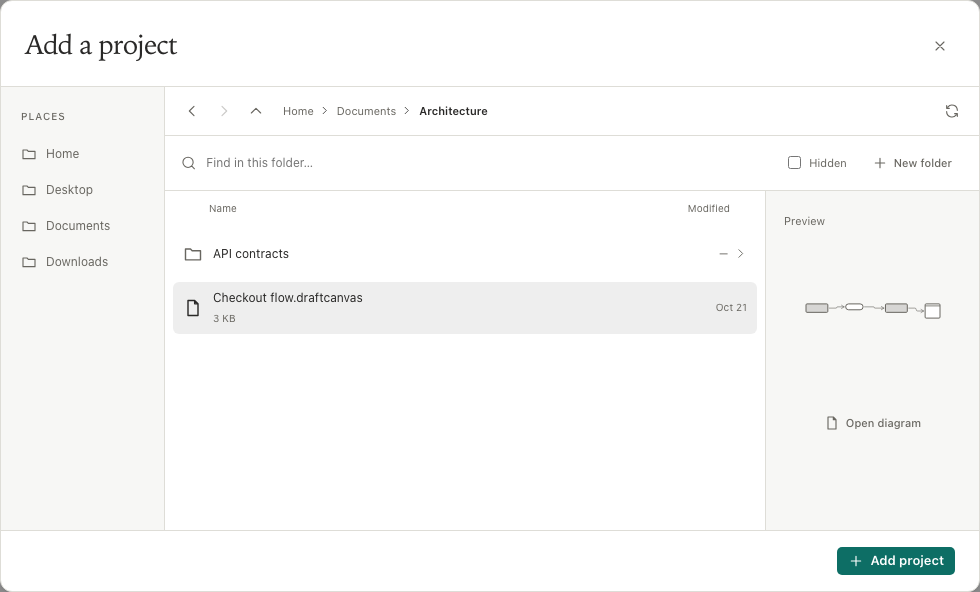
The File menu offers the same explorer through Add project… (⌘⇧O). Adding a folder puts it on
Home, and it stays there, beside every other project you've added, until you choose Remove from
Home (which forgets it and leaves the folder alone). There is nothing to import and no project file:
the folder is the project, and opening a diagram is opening the file.
payments/
├── overview.draftcanvas
├── payment-flow.draftcanvas
└── docs/
    └── reconciliation.draftcanvas
Home's Projects row shows the ones you used last, each as a small stack of its diagrams with the newest on
top. Choose one to see everything in it, drawn. Find a diagram (⌘F) searches every project, your recent
files and your drafts at once, by name or folder, and the chips along the top narrow it to one of them. A
project whose folder isn't there right now (on a drive that isn't plugged in, say) stays on the list, marked
as missing, and comes back when the folder does.
Inside a project, subfolders show as tiles of their own — open one to see just what's in it, with breadcrumbs back up, and New canvas here for wherever you are. Searching descends into every folder below the one you're in; browsing doesn't, so a large project stays a folder at a time rather than one long list.
Home finds a folder's diagrams by name and date alone, so a large folder is as quick as a small one. It skips
hidden folders and the usual build folders (node_modules, target, dist), stops at a depth and a count that
a project never reaches, and says so if a folder holds more than it lists. A project is only listed once
something shows it, so fifty projects cost nothing until you look. Only the files on screen are looked inside,
to draw each one as its diagram: shapes only, never the words, and looking isn't opening, so nothing is added to
Recent and nothing is written.
Because they're plain files, the same diagrams can live in a repository beside the code they describe:
my-service/
├── src/
├── README.md
└── docs/
    ├── architecture.draftcanvas
    └── deployment.draftcanvas
They open in Draft Canvas Desktop, show up in a pull request, and move and copy like any other file. Desktop adds nothing to the file: what it writes is byte for byte what the web app's Export → Document writes. The one companion is a background image, kept beside the file.
Diagrams you made in the browser aren't shared with the desktop app. Move one over with Export → Document →
Editable in the browser, and open the file. Encrypted .dcenc exports can't be opened in the desktop app yet:
open those in the browser version. (The desktop app can still create them, from Export.)
The menu bar and system tray#
Draft Canvas stays a click away after its window is closed. On macOS it has a menu-bar icon, on Windows a system-tray icon, and the icon's menu is deliberately short:
- Show Draft Canvas brings the window back — Home, with your drafts, recent files and projects.
- One line says whether agent access is on and how many agents are connected, since that is the one thing a hidden Draft Canvas may be doing (see Connect an AI agent).
- Settings… and Quit Draft Canvas.
Closing the window hides it rather than quitting, so the next Quick Draft is instant and a connected agent
keeps its app. The first time, Draft Canvas
tells you where it went and asks whether that's what you want; Settings changes it later. Quit (from the
menu, ⌘Q) really quits, and asks first when a file has unsaved changes, even from the tray. Logging out or shutting down never waits on Draft Canvas: anything unsaved is already
kept.
While hidden, Draft Canvas does nothing. It doesn't watch your keyboard, mouse, screen, meetings or other apps, and doesn't look through your disk for diagrams. It only ever touches the files and folders you choose, and its own data folder. The one thing it asks the network is whether there's a newer version (below), and it can be turned off.
Settings#
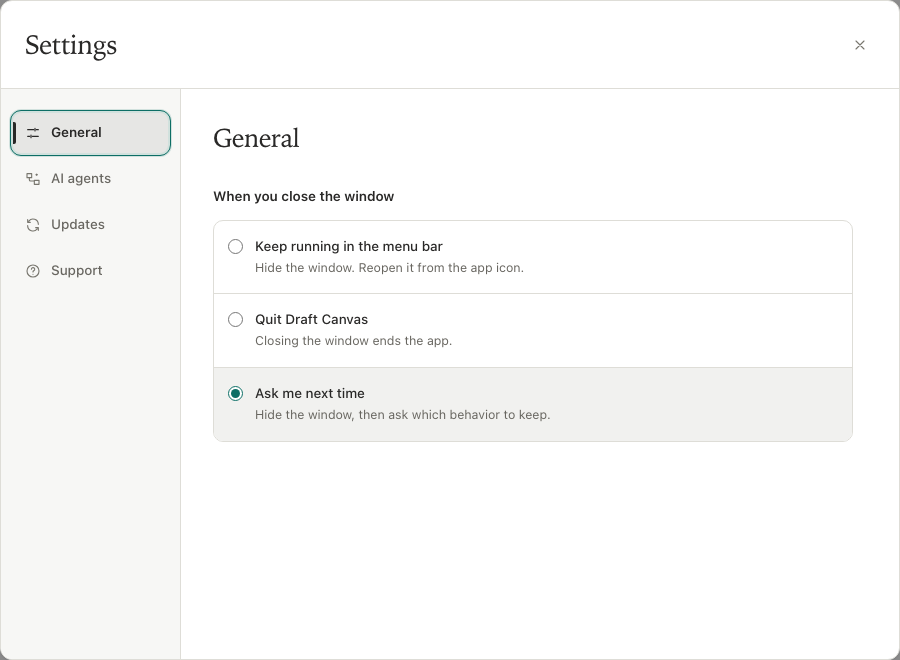
Open Settings… (⌘, / Ctrl+,) from the app menu or tray. Choose General for window-close
behavior, AI agents for folder access and agent setup, Updates for update preferences, or
Support for a diagnostic report. Changes apply immediately; there is no Save or Cancel step.
Use the arrow keys to move between categories, and Escape or the close button to return to your work.
Diagnostic reports#
Open Settings → Support to review a local diagnostic report and choose Download report. It includes recent failure categories and timestamps, without diagram content, file paths, identifiers or error messages. Nothing is sent automatically. Licences remain available in About → Licences.
Updates#
Draft Canvas looks for a newer version shortly after it starts and once a day after that. That's all it does on its own: it reads one small file from this project's GitHub releases, and sends nothing about you or your diagrams.
When there's a newer version, a small Update available appears in Home's corner and in the status bar. It opens what's new, with Download and Later. Downloading doesn't interrupt anything, and every download is checked against a signature built into the app before it can be installed. When it's ready, Update and restart keeps anything unsaved first, and asks about a file with changes, exactly as quitting would. Choose Cancel there and you keep working; the update waits.
Settings → Updates has Check for updates automatically (on unless you turn it off) and Check for updates. How updates are built, signed and published is in Desktop updates.
Keyboard#
Everything in the editor works as it does everywhere else in Draft Canvas (the shortcuts). The desktop adds the file shortcuts, in the menu as well. They work while Draft Canvas is the app in front; none of them is system-wide.
| Shortcut | Does |
|---|---|
⌘N / Ctrl+N |
New Quick Draft |
⌘⇧N / Ctrl+Shift+N |
New File… |
⌘O / Ctrl+O |
Open… |
⌘⇧O / Ctrl+Shift+O |
Add Project… |
⌘S / Ctrl+S |
Save |
⌘⇧S / Ctrl+Shift+S |
Save As… |
⌘W / Ctrl+W |
Close the window (it stays in the menu bar or tray) |
⌘F / Ctrl+F |
Find a diagram, on Home: every project, recent file and draft |
⌘, / Ctrl+, |
Settings |
⌘Q / Ctrl+Q |
Quit |
Building it yourself#
You need Node 22.14 or later, the Rust toolchain, and Tauri's system prerequisites: Xcode Command Line Tools on macOS, and the Microsoft C++ Build Tools with WebView2 on Windows.
npm ci
npm run desktop:dev      # the app, with hot reload
npm run desktop:build    # an installer, in src-tauri/target/release/bundle/
npm run desktop:check    # the desktop build, the Rust checks, and the version check
npm run check and npm run e2e are still the checks for the editor itself, and don't need Rust. The desktop
screens have their own browser tests (npm run e2e:desktop), which run the real editor against a faked shell.
How it fits together is in Architecture: the editor is the same React
code as the web app, and the Rust side (src-tauri/) does only what a web page can't, which is windows, the
tray, native dialogs and safe file writes.
Releasing#
The desktop app has no version or release of its own: every Draft Canvas release (vX.Y.Z, the version in
package.json) includes it. .github/workflows/release.yml creates the release, and
.github/workflows/desktop-release.yml builds the two macOS .dmgs (Apple Silicon and Intel) and the
Windows (x64) installer into it, with a checksum file and a build attestation. The Intel build is
cross-compiled on the same arm64 runner as the Apple Silicon one, which is why there is no third
machine in the matrix.
Before a release, the desktop app can have previews: a desktop-vX.Y.Z-alpha.N (or -beta.N) tag builds a
prerelease of its own, titled "Draft Canvas X.Y.Z-alpha.N", whose X.Y.Z may lead package.json's. A preview
install follows previews until the release it leads to; a release install is never offered a preview. Its notes are its dated section of
CHANGELOG.md — the Shared and Desktop parts of it, generated the same way as any release's (see
Release notes).
The installers are not signed or notarized: that needs paid developer certificates. The operating system therefore warns the first time, and the release notes say how to continue:
- macOS: open System Settings → Privacy & Security and choose Open Anyway for Draft Canvas.
- Windows: in SmartScreen, choose More info → Run anyway. The installer is per-user and needs no administrator rights.
Signing can be added later without changing anything else; there is deliberately nothing about it in the workflow today. Every release is also an update installed copies are offered, signed with the project's own update key; Desktop updates has the one-time setup and what the workflow checks.
Homebrew releases#
Casks/draft-canvas.rb in the shared tap is generated
by Draft Canvas, alongside Habi's independently managed cask. The Release orchestrator waits for
stable desktop publication, then explicitly calls .github/workflows/homebrew.yml; GitHub does not start release-event workflows from releases
published using its normal workflow token. Prereleases and drafts never update the stable cask.
The job downloads both published DMGs and SHA256SUMS.txt, verifies the bytes, runs Homebrew style
and audit checks, and commits only the generated cask. It refuses older versions, retries concurrent
tap pushes, and makes an unchanged rerun a no-op. Pages and signed updater-channel publication run
independently: a Homebrew failure does not retract a release or block either of them.
Credentials#
Create a dedicated Ed25519 deploy key for Draft Canvas. Add its public half as a write-enabled deploy
key on acltabontabon/homebrew-tap, and store its private half as the HOMEBREW_TAP_DEPLOY_KEY Actions
secret on acltabontabon/draft-canvas. The key grants access only to the tap; the normal
GITHUB_TOKEN cannot push to another repository. Never commit either private keys or secret values.
The workflow fails visibly if its deploy key is missing. Pass the secret only to the Homebrew
reusable workflow call in the Release orchestrator.
After a manual desktop rebuild, run Homebrew separately to refresh the cask checksums.
Retry and recovery#
In Draft Canvas's Actions, run Homebrew, supplying the published stable tag (for example
v1.13.1). The workflow uses its current source so the initial cask can be published before a new
app release. A request for a stable release older than the latest published stable release is
skipped; a cask newer than the requested version is also preserved. A same-version installer rebuild
can refresh checksums, but identical cask content does not create a commit.
If verification or Homebrew auditing fails, fix the cause before retrying. For a missing key, follow the credential setup above. Never disable checksum checks or bypass Gatekeeper. To withdraw a bad version or intentionally roll the tap back, make a reviewed correction in the tap; automatic jobs refuse downgrades. This does not downgrade already installed copies. See release recovery.