Saving, backing up and sharing
Draft Canvas saves diagrams in your browser as you draw. This guide separates what happens on its own from what you have to do, because the second list is what protects you from losing a diagram.
On the desktop? The file is the storage there, and none of this applies. See Draft Canvas Desktop.
What happens on its own#
- Autosave. About 0.7 seconds after you stop editing, the diagram is written to this browser's local database (IndexedDB). If you never pause, it still writes at least every 4 seconds. The status bar says Saved locally when it has. You will only see Saving… if a write is slow.
- Where you left off. Moving the canvas is saved too, so a diagram reopens where you left it.
- Leaving. Closing the tab, reloading, or switching away flushes a final save. That is best-effort: a browser can end a page before storage finishes, so don't rely on it for work you can't redraw. Going Back to your diagrams waits for the save and tells you if it failed.
- Plain records. Diagrams are stored as plain records in the browser's own database, readable by anything that can read this browser profile — the same as a file in your user folder. Earlier versions encrypted them with a key kept in the same profile; those diagrams still open, and are saved plain the next time you edit them. Privacy and SECURITY.md say what that encryption did and why it was retired. A diagram that must be protected at rest is a passphrase-encrypted export, below.
- Two tabs, one diagram. If you edit the same diagram in two tabs, the second tab to save is stopped and the status bar asks which copy to keep: Keep mine or Load the other tab's. Nothing is overwritten until you choose.
Import and Export#
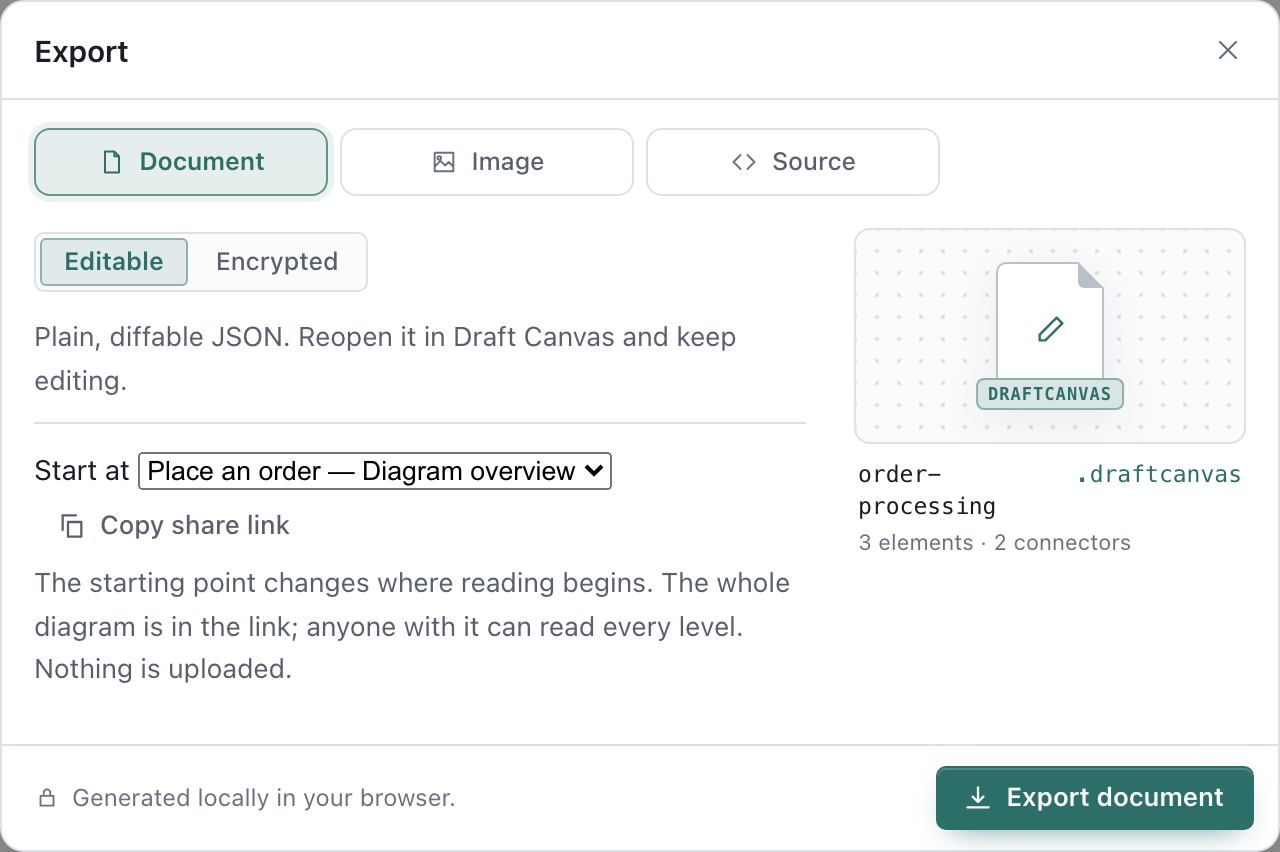
Use Import on Home or in the Library to open a portable file. Use Export → Document → Editable
to download a .draftcanvas copy you can reopen, move to another device, or commit to a repository.
An export is a snapshot: export again to keep a new file copy of later edits. Browser autosave keeps
your local diagram up to date while you work.
What you have to do#
- Back up anything you'd mind losing. Diagrams live in one browser profile on one device. Clearing
site data for this site deletes them. There is no recovery: Draft Canvas has no server, so it has no copy.
Back up on the Library screen writes every diagram to one
draft-canvas-backup-<date>.zip— a plain.draftcanvasfile per diagram, plusprojects.jsonwith your project folders — and Restore… reads one back, whatever its total size (each diagram still has the 24 MB file limit). Restoring never overwrites: a diagram whose id is already in the Library arrives as a copy, so an old backup can be restored over a Library that has moved on. When the browser hasn't promised to keep your data and no backup has been made for a week, the footnote under the list says so and offers one. - Move a diagram to another browser or machine. Export it there, import it here. A diagram made in Chrome is not in Safari, and private windows usually discard their storage when closed.
- Use HTTPS for offline. Browsers install the offline cache only on HTTPS or
localhost. Served over plainhttp://from another machine, Draft Canvas saves normally but needs the network to load.
If the browser blocks storage altogether (some private modes and embedded browsers), the status bar reads In memory only and a message explains it. Work in that state disappears when the tab closes, so export before you leave.
Reopening a diagram#
Choose View all on Home to open the Library gallery, the list of everything saved in this
browser. Click a diagram to open it. Search diagrams… (press / to jump to it) finds diagrams
by title or project name, not by what is drawn in them. Home returns to the starting scene.
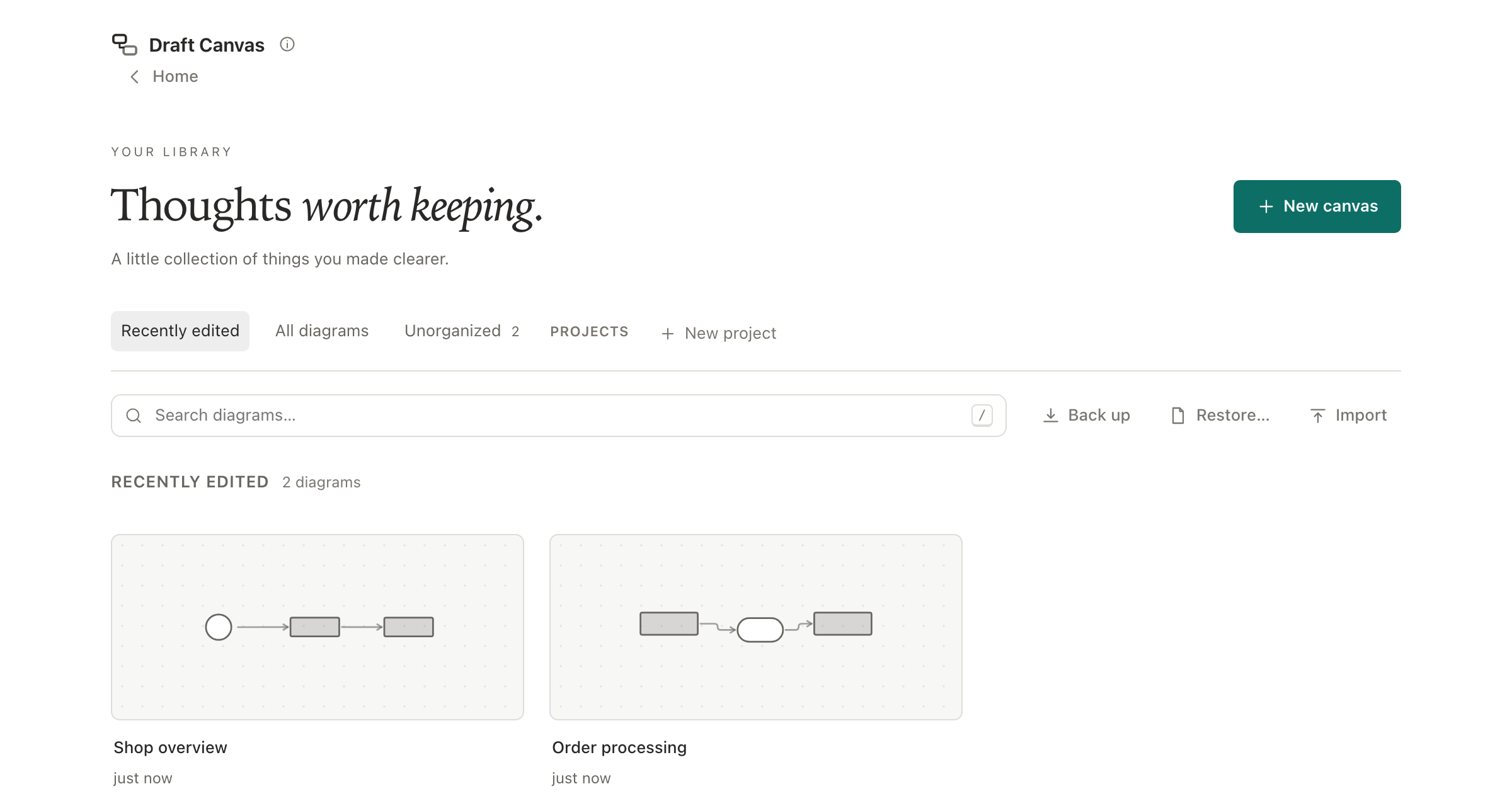
The Library also lets you rename, duplicate, delete, and move a diagram into a project. Projects are flat folders for your own tidiness; a diagram is in at most one, and deleting a project moves its diagrams back to Unorganized rather than deleting them.
Export a file#
Open Export (⌘⇧E, or Ctrl+Shift+E; ⌘E also works), or run Export… from the
command palette. The dialog has four modes (Document comes in two kinds):
| Mode | You get | Good for |
|---|---|---|
| Document → Editable | .draftcanvas: plain, diffable JSON |
Backups, moving diagrams, keeping one in a repository |
| Document → Encrypted | .dcenc: locked with a passphrase |
Sending a diagram somewhere you don't control |
| Image | PNG or SVG, optionally with the diagram inside | Slides, docs, chat |
| Source | Mermaid or PlantUML sequence diagram from a flow; or the architecture as a Mermaid flowchart, C4-PlantUML, Structurizr DSL or a .drawio file |
Docs that already render those, and other diagram tools |
Notes on each:
.draftcanvasholds the whole diagram, including everything you drew inside shapes. A canvas background image travels inside the file when it is 2 MB or smaller (the dialog says when one is too large to come along), and the file doesn't record which project the diagram was in..dcencasks for a passphrase of at least 8 characters, twice. Draft Canvas never stores it and can't recover it. If it's lost, the file can't be opened by anyone. It uses its own key, unrelated to the one that protects your saved diagrams.- Image offers a Light or Dark palette, Transparent, and Selection only. PNGs export at 2× unless you pick 1× or 3× beside the format — the preview quotes the pixel size you will get, and says so if a very large diagram has to be fitted to a smaller scale than the one you chose. SVGs are vector. Inside a shape, you choose between that shape's canvas and the whole diagram. A diagram with open points keeps their markers, with a key, unless you untick Open point markers.
- Source reads either your Flows or the Architecture. A sequence diagram (Mermaid or
PlantUML) needs a flow — see Getting started for making one.
The architecture formats need nothing but shapes: a Mermaid flowchart, C4-PlantUML (each
shape's C4 role follows the view's level, the way the Depth map reads it), Structurizr DSL (a
workspace with a model and views; rooms inside shapes become containers and components) and
draw.io (a
.drawiofile diagrams.net opens with every shape where you left it, boundaries as containers, one page per room). The panel shows the generated text itself, so what you see is what the file gets. Sequence diagrams have no notation for open points, so those are left out.
Files are named from the diagram's title: Payment Service! becomes payment-service.png.
Exporting happens in your browser; the file goes to your browser's normal download flow and nothing
is uploaded.
Copy instead of download#
Every image and source export can go to the clipboard rather than a file: Copy sits beside the export button in the dialog, and the command palette has Copy as image (a PNG, for chat and slides), Copy as SVG (the markup as text, for a README or an editor) and Copy source as… (any of the source formats). Where the browser can't put an image on the clipboard — Firefox, or a page not served over HTTPS — the file is downloaded instead and the notice says so.
Editable images#
An SVG or PNG can carry the whole diagram inside it: tick Editable — carries the diagram inside
on the Image panel (on by default for SVG, off for PNG; the dialog remembers each). The picture is
the same picture to every viewer — the .draftcanvas text sits in an SVG <metadata> element or
a PNG text chunk that image viewers ignore — and importing that file into Draft Canvas reopens it
as a diagram, every room included. Anyone who has the image has the diagram, so treat an editable
image like a .draftcanvas file rather than a screenshot. The background image doesn't travel in
an editable image.
Import a file#
In the Library, choose Import and pick a .draftcanvas, .json or .dcenc file — or a Mermaid
flowchart (.mmd, .mermaid, or a .md with a ```mermaid block; see
Importing a Mermaid flowchart). (On a first run, the button is
Import .draftcanvas.) Dropping a file onto the Library, or onto an open canvas, imports it the
same way.
- A
.dcencfile asks for its passphrase first. A wrong passphrase is reported and nothing is imported. - If you already have a diagram with the same id, for example because you exported it from this browser, the import arrives as a new diagram; the existing one is never overwritten.
- Imported diagrams open straight away and are saved like any other. They are not put in a project.
Repairs, limits and compatibility#
Draft Canvas repairs rather than refuses. A file with a few broken connectors opens with the rest intact, and a message lists what was dropped, for example Imported with repairs: Dropped 3 connector(s) pointing at nodes that do not exist. Content past the size limits (5,000 shapes, 10,000 connectors, 50 flows, 3 levels of nesting inside shapes) is trimmed the same way, and files over 24 MB are refused.
Files carry a format version. The rules are:
- Older file, newer app: it upgrades when opened. The file you picked isn't modified; the upgraded copy is what gets saved in the Library.
- Newer file, older app: it is refused with a message like This file was made with a newer version of Draft Canvas, rather than opened and quietly stripped. Reload the page to get the current version. An installed offline copy can lag until it reloads.
- A file that isn't a Draft Canvas document is refused with an explanation.
The full contract is in the schema reference.
Importing a Mermaid flowchart#
A Mermaid flowchart or graph becomes an editable diagram: pick the file in the Library's
Import, drop it onto the Library or a canvas, or paste the text (⌘V / Ctrl+V) onto an open
canvas. A file opens as a new diagram named after the file (a title: line in Mermaid front matter
wins). Pasted or dropped text lands in the diagram you are editing, beside what is already drawn,
selected, as one step — ⌘Z removes all of it. Draft Canvas lays the result out itself; the
positions Mermaid would have chosen are not part of the text.
What maps:
| Mermaid | Draft Canvas |
|---|---|
[text], (text), ([text]), >text], [/text/], [\text\] and the trapezoids |
Service |
[(text)] cylinder |
Data Store |
[[text]] subroutine |
Queue |
((text)), (((text))) circle |
Person (an actor) |
{text}, {{text}} decision |
Junction, carrying the text |
-->, ==>, and their longer spellings |
Connector |
--- (no head) |
Undirected connector |
-.-> dotted |
Asynchronous connector |
-->|label|, -- label -->, -. label .->, == label ==> |
Connector label |
A --> B --> C, A & B --> C |
Each arrow in the chain or fan |
subgraph id [Title] … end, nested |
Boundary, nested |
TD/TB and LR |
The reading direction of the layout |
"quoted" labels, <br> line breaks, #quot;-style entities |
The text, as Mermaid shows it |
%% comments, a ```mermaid fence in Markdown |
Ignored and unwrapped |
What is skipped is named in one message before the diagram opens (Imported — 3 things Mermaid said
that Draft Canvas doesn't draw: classDef, style, click): classDef, class, :::class, style,
linkStyle, click, accTitle/accDescr, direction inside a subgraph, @{ shape: … } node
syntax (drawn as a plain shape), invisible ~~~ links, arrows to or from a subgraph itself, circle
and cross arrowheads (drawn as plain arrows), two-headed arrows (drawn one way), RL and BT
(drawn left to right and top to bottom), and HTML inside labels (the tags are removed). Other Mermaid
diagram kinds (sequenceDiagram, classDiagram, …) are refused with a message naming the kind.
A flowchart is one import's worth of work: up to 300 shapes, 600 arrows and 60 subgraphs, labels up to 120 characters (80 on arrows and subgraphs; longer ones are shortened), and text up to 512 KB. Past any of these the import is refused with the limit it hit, so a hostile file is never laid out.
Share a diagram#
There are no accounts and no server, so sharing means handing someone the diagram itself. Pick whichever of these fits:
Send a link. Run Copy share link from the command palette (
⌘K), or open Export → Document and press Copy share link. The whole diagram — every room inside a shape included — is compressed into the link itself, after the#; nothing is uploaded anywhere. Whoever opens it sees the diagram read only: a banner says so, the title can't be changed, the create tools are gone, and nothing they type or drag changes it. Make an editable copy in that banner saves it into their own Library as a new diagram, and from there it's theirs to edit. The link is a copy, not a connection: edits you make later don't reach it, and theirs don't reach you.Anyone who has the link has the diagram, as plainly as if you had sent the file, and the link never expires — there's no server to expire it. Chat apps and browsers keep links, and some fetch them to draw previews. For anything you wouldn't paste into a chat as text, send a
.dcencfile instead. A link holds up to 32 KB of compressed diagram, which covers most; a diagram past that is told so and asked to export a file. The background image doesn't travel in a link.Send the file. A
.draftcanvasis readable by anyone who has it, and opens in the hosted app, a self-hosted copy, or the desktop app. For anything you wouldn't send as plain text, use.dcencand send the passphrase by a different route.Put it in the repository.
.draftcanvasis stable JSON with a fixed field order, so an unchanged diagram produces identical bytes and edits show up as small diffs in review.Send a picture. PNG for chat and slides, SVG for docs — or Copy as image straight into a chat. An editable image is a picture the recipient can import and keep editing. For a moving walkthrough, present the flow live or screen-record it; there is no animated export.
Copy shapes between diagrams.
⌘Con a selection and⌘Vin another diagram, even in another tab, brings shapes and their connectors along. Copying puts them on your system clipboard as text, and the app reads the clipboard only when you paste. The first time you use Paste from the context menu or command palette, Draft Canvas asks before reading it.⌘Vdoesn't need to.
If something looks wrong#
- A diagram is in the Library but won't open ("That diagram could not be read from local storage"). The stored record is corrupted, or it was saved encrypted by an earlier version and the browser's copy of the key is gone. The Library can still list it because the title is stored separately, but there's no way to recover what was drawn. If you exported a file, import that.
- The Library is empty. Diagrams are per browser profile and per origin:
localhost:5180, a self-hosted copy and the hosted site each keep their own. Check you're on the same one, and not in a private window. - "This browser is out of local storage space." Delete a diagram you no longer need, or export this one first.
- Saving stopped and says another tab updated Draft Canvas. Export your recent changes, then reload.
Choose where a shared explanation begins#
Open Share from here… in the command palette, or use the share controls in Export's document view. Start at offers Diagram overview, Current level, and playable flows labelled with their location. It defaults to the selected playable flow, then the current nested level, then the overview. The quick Copy share link command always starts at the overview.
A flow link opens read-only at its introduction; the reader advances it themselves. They may explore or make an editable copy. The starting point changes where reading begins, not what is shared: the link still contains the whole document. Old links work as before. An unavailable level or flow falls back to the overview with a notice. The starting metadata counts toward the link-size limit.
Checking backups and reporting a failure#
The Library reminds you when your last backup is missing or over a week old, including when the browser has granted persistent storage. A partial backup keeps readable diagrams but says how many could not be read; it does not count as a complete backup. Keep an earlier backup until the problem is resolved. Browser persistence does not protect against clearing site data or losing the device.
For a problem report, open More → Diagnostic report… in the web editor, or Settings → Support on desktop. Review the displayed JSON and choose Download report. It includes recent failure categories and versions, excluding diagram content and file paths. It is never sent automatically. Saving and recovery limits are explained in reliability.