Shapes, connectors and boundaries
Draft Canvas knows what its shapes are. A Queue is not a rectangle with a caption: it is something a Service hands work to and a Worker consumes from, and the connectors between them say so without you typing it. This guide is about using that: picking the right kind of shape, saying what an arrow means, showing the reply, and marking the failure path.
Shortcuts are written for a Mac. On Windows and Linux, read ⌘ as Ctrl.
Technology and description#
Select an architecture shape and choose ⋯ › Edit details… to set Technology and Description. As you type, matching names appear with their Simple Icons. Choose a suggestion with the pointer, or use the arrow keys and Enter. Escape closes suggestions; Enter without a matching suggestion or leaving the field keeps your custom value. A version you have already typed is preserved when you choose a matching name: Postgres 16 becomes PostgreSQL 16.
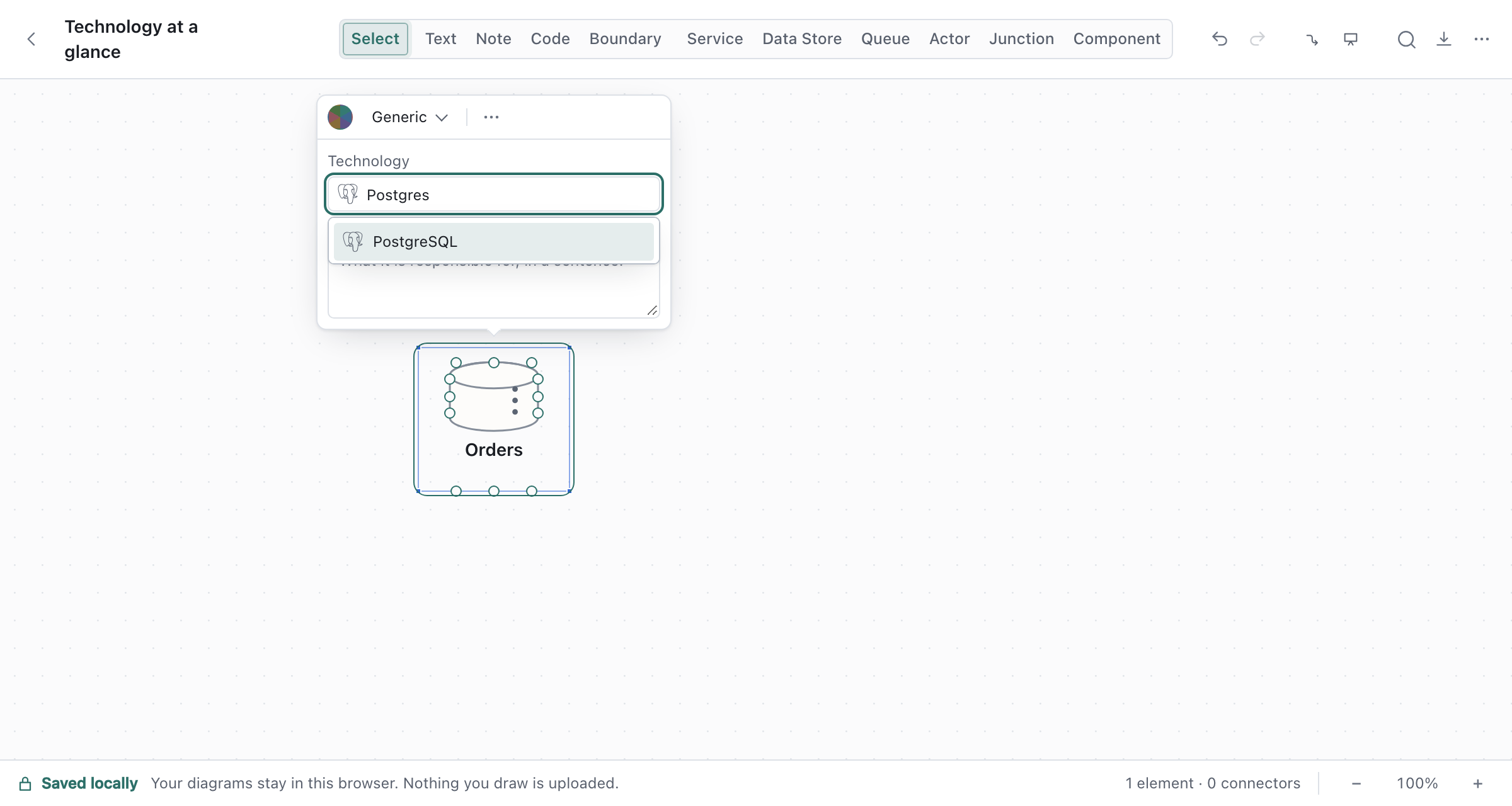
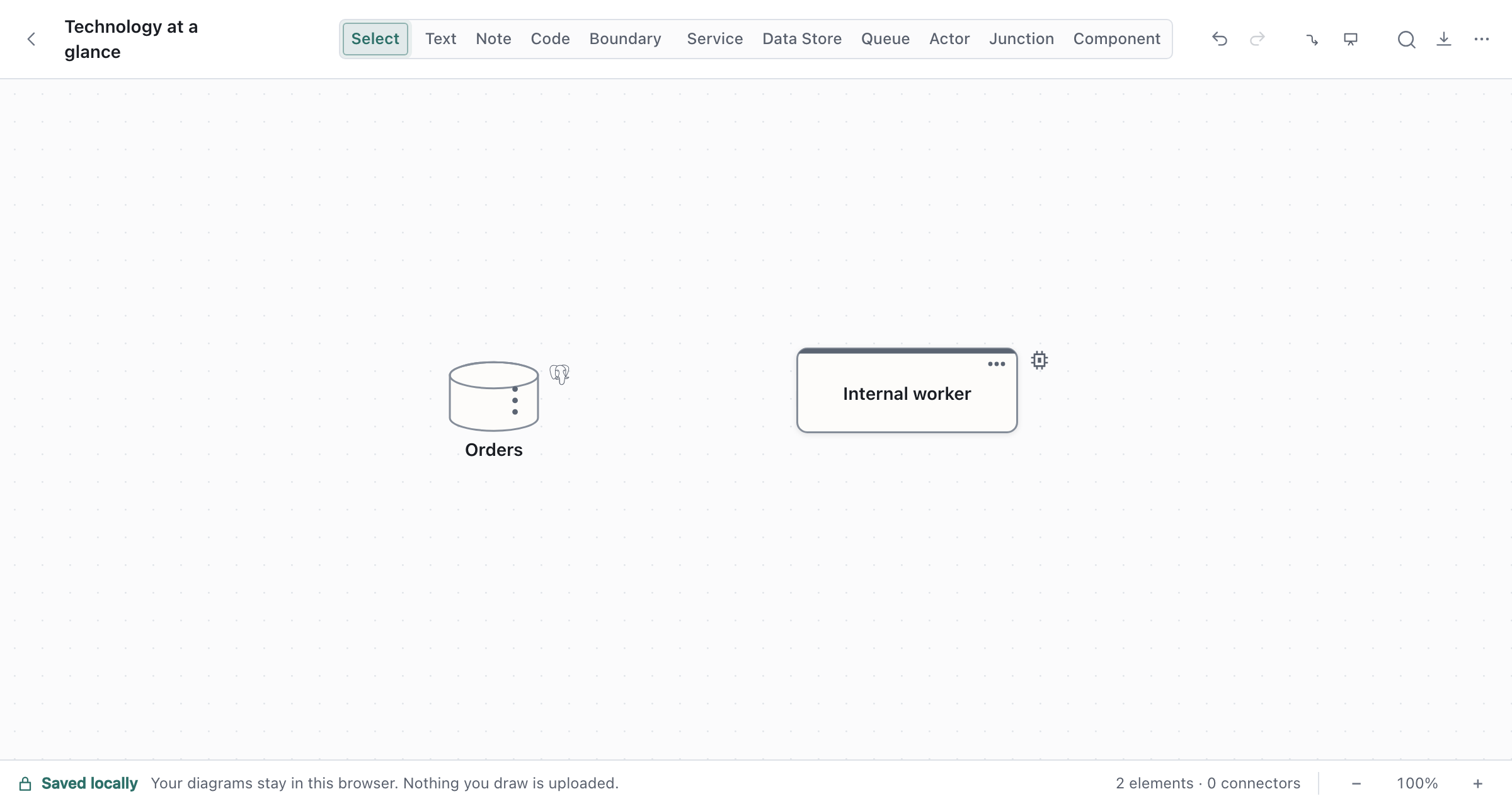
Every nonempty technology appears as a small, unframed icon beside the shape's upper-right corner; for a Data Store, it sits beside the symbol. Recognized names use their brand logo; custom names and mixed stacks such as Node.js / React use a neutral chip. Click the icon, or focus it and press Enter, to read the complete technology and version. The name, kind and description stay visible. Clear the Technology field to remove the icon.
The catalog includes every icon in the app's pinned Simple Icons version: currently 3,466 icons from version 16.35.0, including Rust, Vue.js, Apache Cassandra, Tauri and many more. Search by brand name or Simple Icons slug. Common aliases such as Postgres, K8s, Rails, VueJS and OTel work too. Names are case-insensitive, and a trailing version such as Rust 1.90 is recognized. When unrelated brands share a name, suggestions include their slug in parentheses so both can be selected and saved unambiguously. Free text is always allowed; a brand missing from this upstream version uses the generic icon.
Brand logos come from Simple Icons. A small name index is immediately searchable; artwork loads only when needed, in separate local groups, rather than all at startup. The desktop installation includes every group. On the web, the offline cache saves the complete set along with the app after the first visit, so even previously unused icons remain available offline. No icon requests go to a third party. Image exports wait for their logos and embed the paths. The full technology remains in saved files and architecture source exports. Technology never changes a shape's kind or its relationships.
Pick the right kind#
Every architecture shape has a kind, one step sharper than the shape. Select a shape and choose it from the bar that appears; the silhouette changes so the kind can be read from across the room.
| Shape (key) | Kinds |
|---|---|
Service (S) |
Service, API, Worker, External System, Scheduler, Gateway |
Data Store (D) |
Database, SQL, NoSQL, Cache, File system, Object storage, Search index, Table |
Queue (Q) |
Queue, Topic, Stream |
Actor (A) |
Human, System, Device, Group, Third Party |
Component (M) |
Component, Module, Adapter, Port |
The kind decides which relationships the shape can have. A Service reads / writes its Database and invalidates a Cache; a Topic fans out to queues and a Queue is consumed by a worker. The full table is in Architecture semantics.
An External System is a Service you don't own: a payment provider, an email service. It carries an EXTERNAL caption and takes the same connectors a Service does.
Actor frames#
New Actors are Borderless: a participant symbol with its name and optional description underneath. Select an Actor and use Actor frame in its bar to choose Framed for the outlined card, or switch back to Borderless. Both styles support every Actor kind and appear the same in image exports. The choice can be undone. Existing diagrams keep their framed Actors.
Keep names readable#
Double-click a shape or select it and press Enter to edit its name where the label is drawn.
Press Enter to keep the name, or Escape to cancel the rename.
Long architecture names grow their shapes as you edit them; boundary headings gain width. Names in the toolbar, panels and menus wrap so you can read the full name.
For an existing small shape whose label is shortened, select it and choose Fit shapes to text
from the command palette (⌘K). You can fit several selected shapes at once. The change keeps their
positions and membership and can be undone in one step.
Say what the arrow means#
Drag from a shape's handle onto another shape to connect them. The connector labels itself with the
most likely relationship for that pair, reading in the direction of the arrow: Orders API
sends command to orders, and orders is consumed by Fulfilment worker.
Hold Shift while clicking shapes or connectors to add them to or remove them from the selection.
A connector can be selected alongside shapes without selecting both of its endpoints.
Drag a selected connector's endpoint to change the shape it connects to or the side it attaches to.
An endpoint stays easy to grab when zoomed out. If that pair is already connected, Draft Canvas
keeps the original connection and shows Already connected to that shape. Press Escape during
the drag to cancel it.
To change it, click the connector. Its popover lists only the relationships that make sense for those two shapes, with the current one marked. Nothing stops you drawing something unusual on purpose: a pairing the matrix has an opinion about shows a small ▲ and still offers depends on.
Bend a connector by hand#
Connectors route themselves, and re-route as you move shapes. When a line doesn't go where you want — it crowds a label, takes the long way round, or an agent drew it somewhere awkward — select it and drag it into place:
- A Stepped connector shows a small bar on each straight run. Drag one sideways to move that run; the runs either side stretch to follow, so the line stays square. A run snaps level with the ends and with the line's other runs, which is how a jog comes back out.
- A Straight or Curved connector shows a square on each bend and a faint dot between any two points. Drag a dot to add a bend, drag a square to move it, and double-click a square to remove it.
The ends still follow their shapes. Move both shapes together and the bends come along; move one and the line re-squares itself to meet it. Each drag is one undo step.
To hand a connector back to automatic routing, right-click it and choose Reset route. Tidy
connectors in the command palette (⌘K) does the same for every connector at once.
Sync, async and the reply#
Between two Services, the popover's Interaction section chooses the protocol (HTTP or a Generic Call) and the mode:
- Sync draws a solid line: the caller waits.
- Async adds a break mark: the caller carries on. The request line keeps its existing stroke style. Right-click a service connector and choose Make asynchronous or Make synchronous to change the same mode without opening the popover.
Turn Response on to draw the reply coming back along the same connector, with its own text
(200 OK, order accepted). Guess fills in a sensible status for the protocol. An asynchronous
call has no response line; switching a connector to Async removes it.
Put a note or payload on a connector#
Notes and Code shapes dock onto connectors the same way they dock onto shapes: drag one over the line and hold until it snaps into a chip. Use a Code chip for the payload or the message schema, and a Note for why the call is there. Click the chip to read or edit it; drag it off to make it a free-standing shape again.
Right-click a connector for the same two, created already docked.
Mark the failure path#
A queue whose messages can fail needs somewhere for them to land. Select a Queue and choose Add DLQ (in the popover, the right-click menu or the palette). Draft Canvas adds a dead-letter queue beside it, connected with a dashed dead-letters to connector. Click that connector to set how many deliveries are attempted before a message is parked; the default is three.
A Topic never dead-letters: retries and a DLQ belong to each subscriber's own queue, which is what the suggestion after a Topic offers.
Branch through a junction#
When one source reaches several targets along the same route, press J to drop a Junction, a
small point you connect through. Connectors into and out of a junction keep the relationship of the
shapes on either side; the junction itself adds no meaning. A bundle of connectors that already
share a route can become one: right-click it and choose Convert to junction.
Boundaries#
A boundary is a frame around shapes that share a scope. Select shapes and press ⌘G, or press B
for an empty one and drag shapes in. Pick the boundary's kind (Boundary, Group, System, Domain,
Network, Deployment) in its bar; each has its own outline so it reads without the label. The
getting started guide walks through them.
Where next#
- Explain a system at different levels: keep the overview small and draw the detail inside a shape, C4-style.
- Flows and presenting: tell the story one step at a time.
- Architecture semantics: every relationship the matrix offers, and why.